Google provides a wide range of services including Gmail, Drive, Calendar, Docs, and more.
How to connect it
In SLX, open your connections and choose Google Contacts.
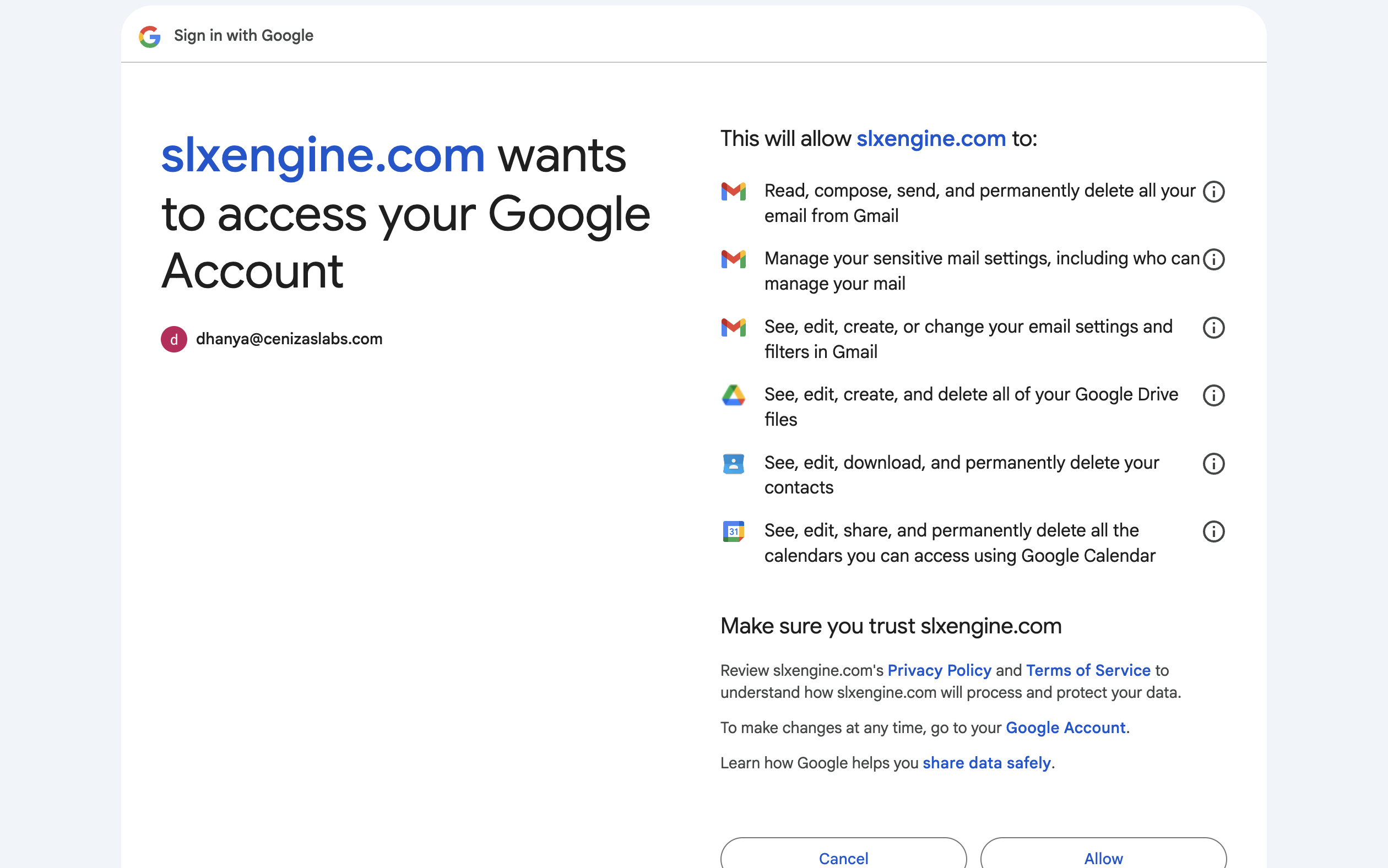
A Google consent window opens, listing the access below. Review it and approve.
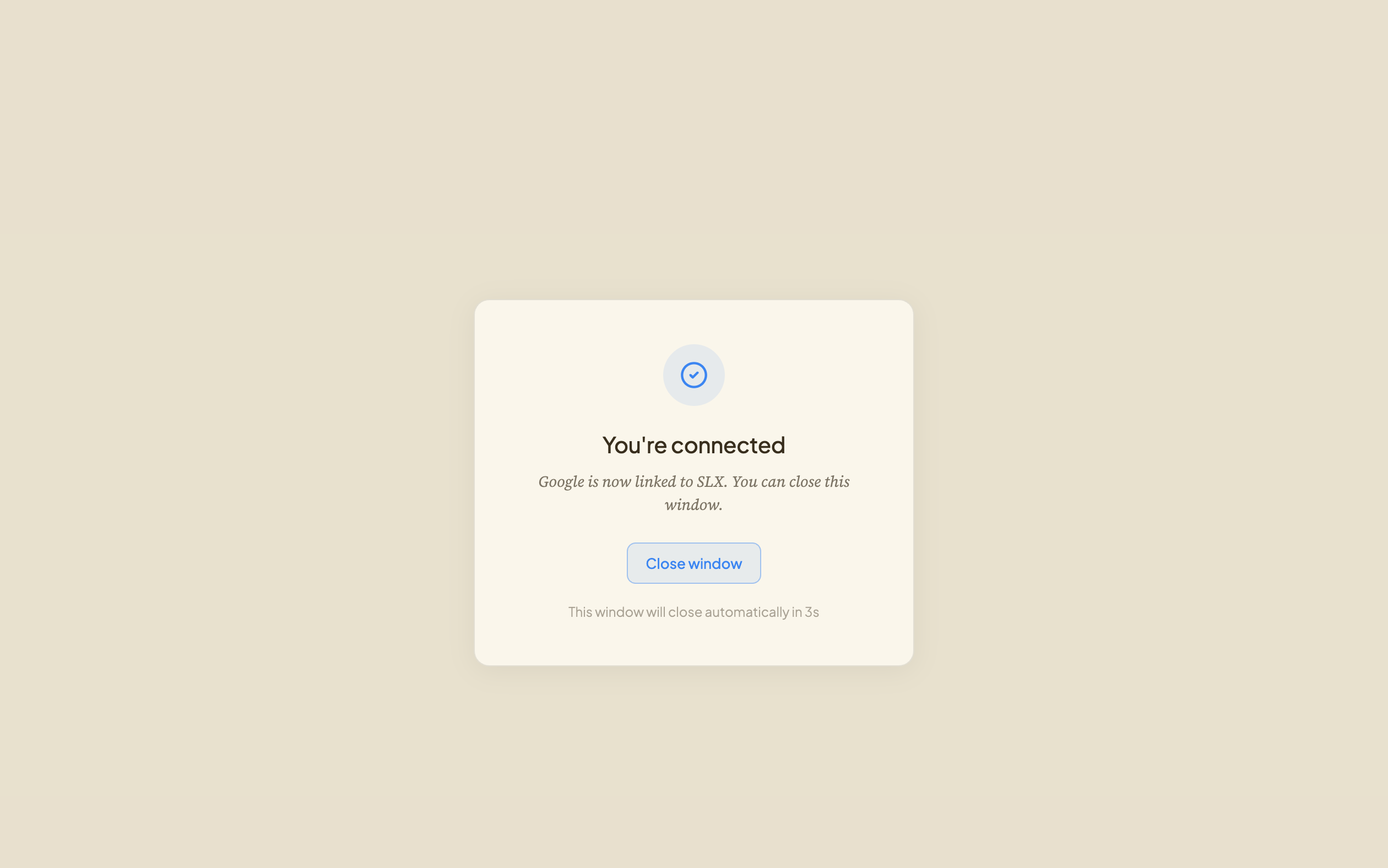
Google returns you to SLX and the connection is stored against your workspace.
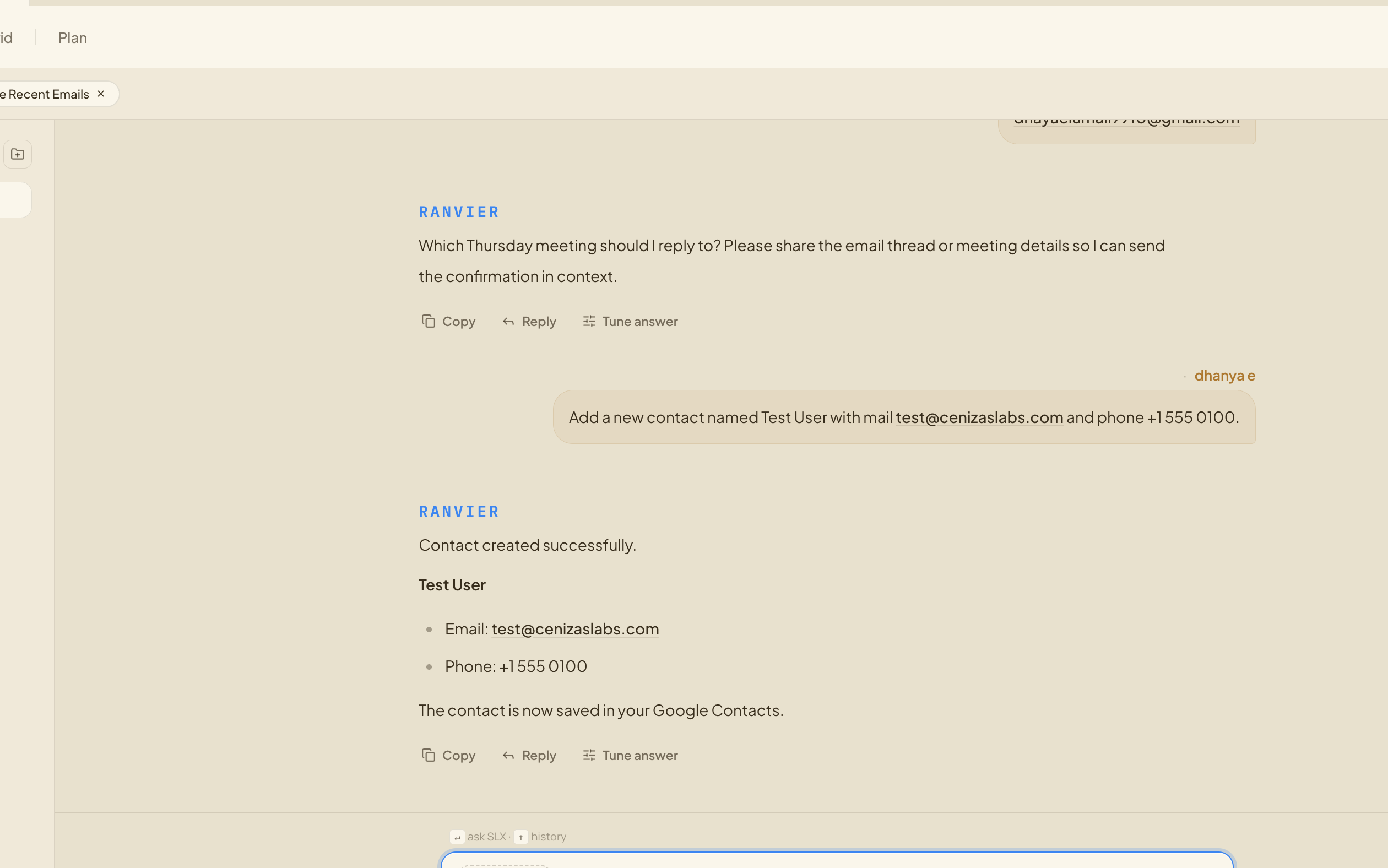
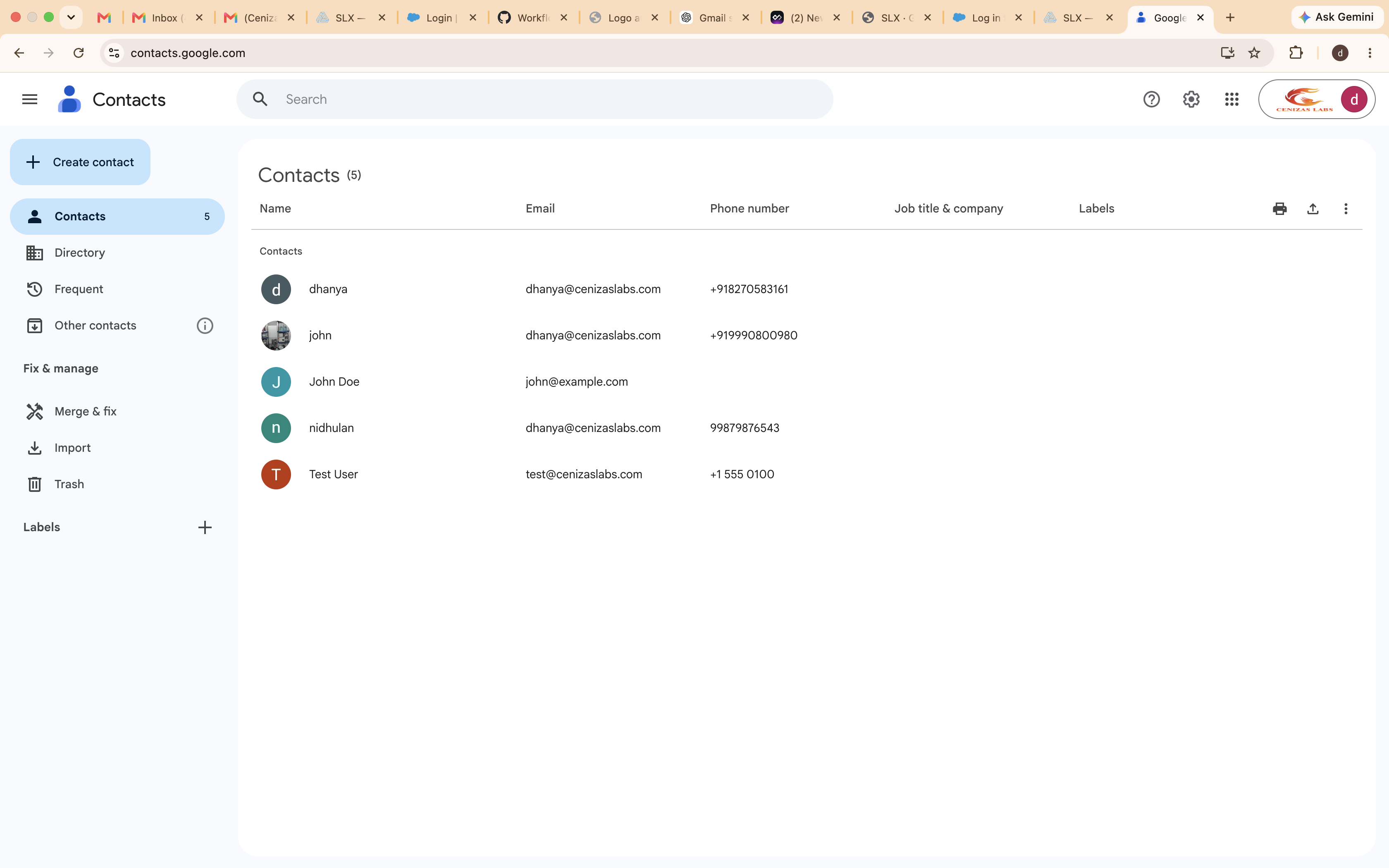
Ask for something in chat. SLX resolves it to a Google Contacts call and runs it. If a token expires or access is revoked, it will ask you to reconnect.
Access it asks for
The exact scopes requested when you connect Google Contacts through Google, shown verbatim so you can check them against the consent screen before approving.
One consent screen, several apps. Google Contacts shares its Google connection with Gmail, Google Drive and Google Calendar. Connecting any one of them grants this whole set — not just the Google Contacts portion.
Scope
What it grants
openid
Confirm your sign-in identity
profile
Read your basic profile information
email
Read your email address
https://mail.google.com/Broad
Full mailbox access — read, send, and permanently delete mail
Full calendar access — see, edit, share, and delete events
https://www.googleapis.com/auth/drive.file
Access only the files you open or create with SLX
https://www.googleapis.com/auth/contacts
Read and write your contacts
Signing in is a different grant. If you sign in to SLX with Google rather than connecting Google Contacts as an integration, a separate consent screen asks for the broader set below — including full mailbox and Drive access. Both grants are real; which one applies depends on how you connected.
Scope
What it grants
profile
Read your basic profile information
email
Read your email address
https://mail.google.com/Broad
Full mailbox access — read, send, and permanently delete mail
Full calendar access — see, edit, share, and delete events
https://www.googleapis.com/auth/drive.file
Access only the files you open or create with SLX
https://www.googleapis.com/auth/contacts
Read and write your contacts
Connection walkthrough
The same flow, step by step. Google’s consent screen is the one place you decide what SLX may reach.
1Choose the app you want to connect.2Review the access requested, then approve.
Once it’s connected, here’s how it works
Where you’ll spend your time in SLX — asking for what you want, and checking what ran.
Dobot
Ask in plain English
Chat is the whole interface. Say what you want and Dobot works out which connected app to use and which call to make — no commands to memorise, no forms to fill.